
Wuthering Waves Lag? Try These Fixes for Stutter-Free Play!
Eliminate Wuthering Waves stutters and unlock smooth performance by switching to a low-ping server and optimizing graphics settings.
Is your gameplay in Wuthering Waves feeling more like a slideshow than a smooth action RPG? 🎮💥 Even with a beastly PC or the latest mobile chipset, sudden stutters and frame drops can ruin the vibe. Don’t worry—you’re not alone, and more importantly, it’s not just your hardware’s fault! The good news? Most of the time, it’s totally fixable. Let’s dive into the ultimate 2026 guide to banishing lag and unlocking buttery‑smooth performance in one of the most stunning open‑world games out there.
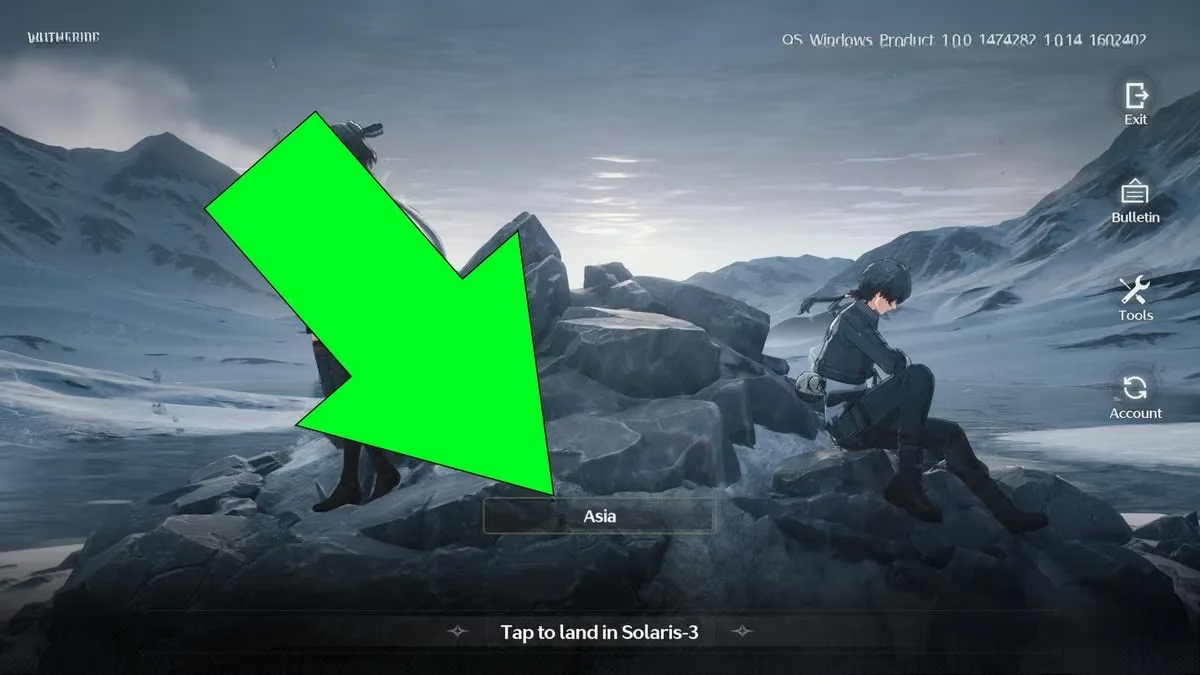
Have you ever launched the game, stepped into the world, and immediately felt like your character was moving through molasses? 🐌 The culprit is often something you’d least expect: super‑high ping on the wrong server. Many wanderers unknowingly start on a server recommended by the game, but that recommendation isn’t always location‑aware. The result? A latency nightmare of 400ms or more, which translates directly into stutters, rubber‑banding, and delayed combat inputs.
🚀 Fix #1: Switch to the Right Server (Seriously, It’s Magic)
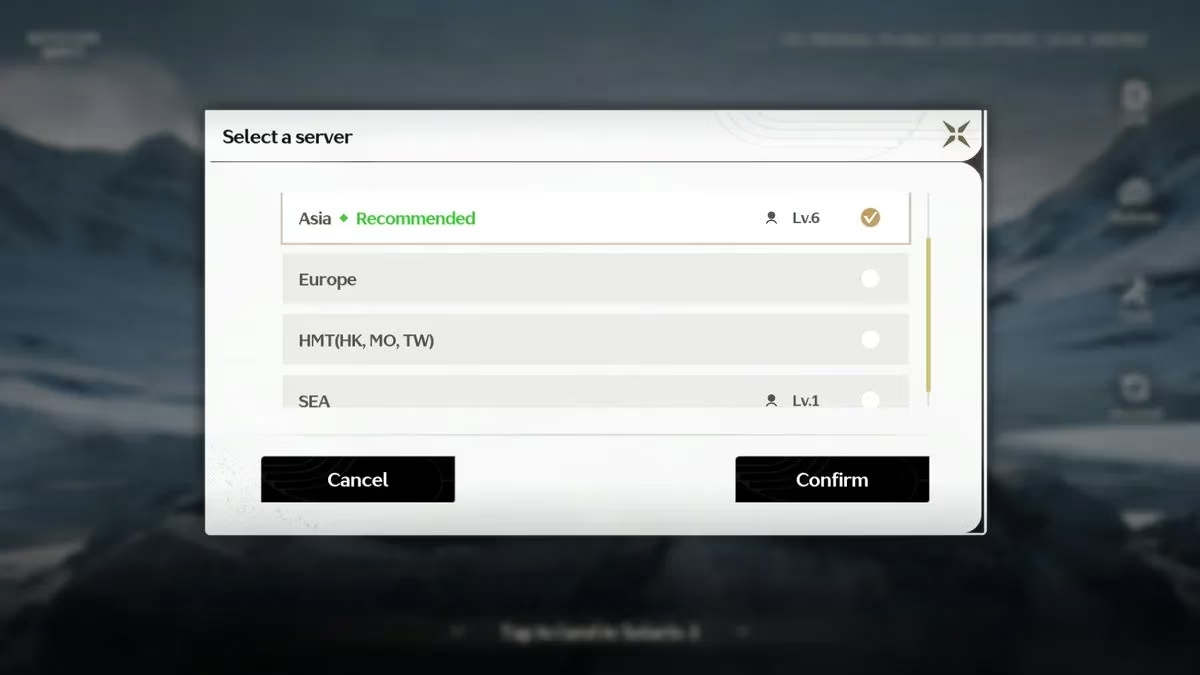
Here’s the step‑by‑step rescue plan that has saved countless players in 2026:
-
Open the Pause menu and hit “Go back to main menu”.
-
At the bottom of the screen, look for the Server button. Tap it!
-
See all those regions? Pick the one closest to your physical location. If you’re in Europe, don’t stay on an Asian server just because the game suggested it.
-
Confirm, then dive back into the game.
A tiny heads‑up: this will start a new save, so your old character won’t follow you. But trust the process—those annoying stutters will vanish as long as your new ping stays low. Once you’re on a server with a healthy 20‑80ms, the game suddenly feels like a completely different experience. Combat becomes crisp, exploration fluid, and you’ll wonder why you ever suffered through the lag.
But wait—what if you already have a great ping and still see low FPS or occasional freezes? That’s where the in‑game graphics settings become your best friend.
⚙️ Fix #2: Tweak These Graphics Settings for Instant FPS Boost
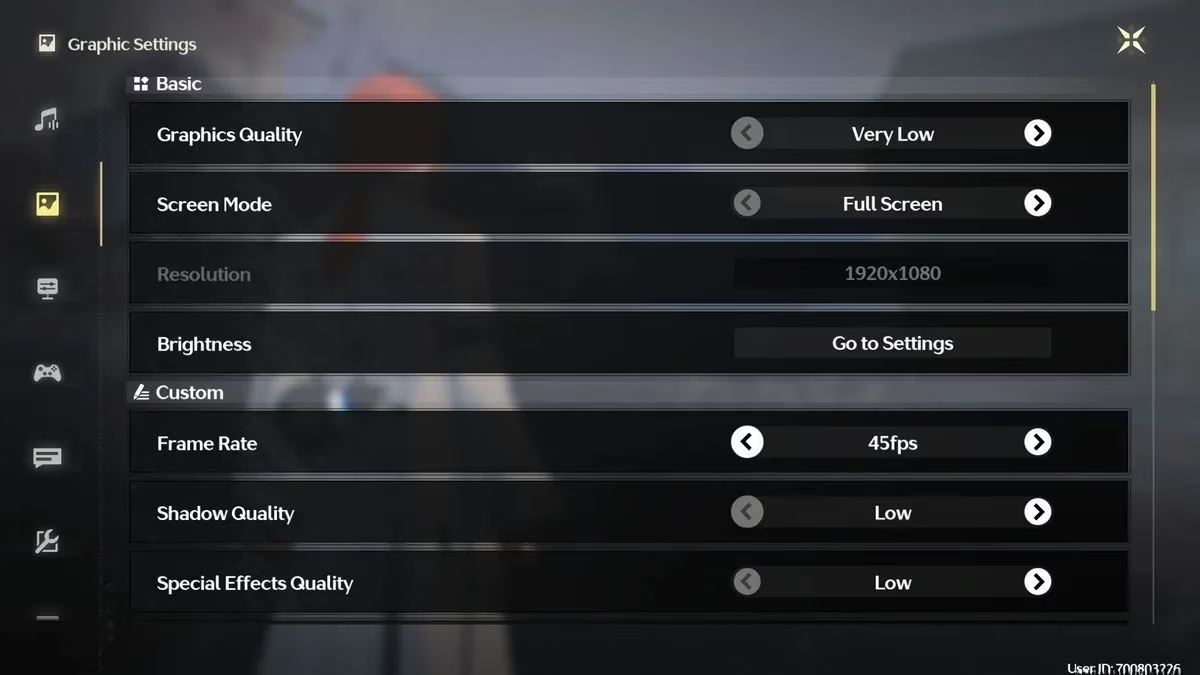
Even in 2026, the breathtaking visuals of Wuthering Waves can push hardware to its limits. Dropping a few demanding settings can double your frame rate without making the game look like a potato. Here’s a table with the magic settings that deliver the best performance‑to‑quality ratio:
| Setting | Recommended Value | Why It Helps |
|---|---|---|
| Shadow Quality | Low / Medium | Shadows eat GPU cycles for breakfast. Lowering them frees up massive horsepower. |
| Anti‑Aliasing | FXAA (or Off) | Complex AA tech like TAA can cause ghosting and lag. Stick to lightweight options. |
| Volumetric Fog & Lighting | Low | That beautiful fog is a sneaky FPS killer. Turn it down and enjoy clearer, faster gameplay. |
| Draw Distance | Medium | Seeing too far stretches your CPU/GPU. A moderate draw distance keeps things smooth. |
| Effects Quality | Low | Less particle clutter in combat means higher frames when it matters most. |
| Motion Blur | Off | Not only does it consume resources, but it also makes the game feel sluggish. Turn it off and never look back. |
| V‑Sync | Off (unless screen tearing is unbearable) | V‑Sync can add input lag. Disable it for snappier controls; if tearing occurs, use Fast V‑Sync from your driver panel. |
Pro tip: after changing these settings, restart the game. Many players notice an immediate jump from 30‑40 FPS to a stable 60 or even 120 (depending on your setup).
🧠 Wait, There’s More? Extra Tips for Stubborn Stutters
If you’ve followed the steps above and still encounter micro‑stutters, here are a few extra checks that the community swears by in 2026:
-
Update your graphics drivers – New drivers often include tailored optimizations for Wuthering Waves updates. Set a reminder to check monthly!
-
Close heavy background apps – Chrome, Discord streams, and RGB software can hog CPU cycles. Keep only the game active.
-
Switch to an SSD – Honestly, running this huge open world on an old‑school HDD is asking for trouble. An NVMe SSD kills loading stutters dead.
-
Lower your resolution – Going from 4K to 1440p, or from 1440p to 1080p, is the nuclear option. Yes, it sacrifices sharpness, but the smoothness might just be worth it.
Does all this sound like a lot? Maybe. But the payoff is immense. Imagine dueling a tough boss without frames dropping mid‑dodge, or gliding across the map with no hitching—that’s the Wuthering Waves experience you deserve. Most players who apply these fixes report the game feeling “unrecognizably fluid,” even on mid‑range hardware.
Remember: the server switch is often the hidden hero. Check your ping! A simple number can make the difference between frustration and pure joy. Next time someone asks “why is my game lagging?”, you’ll know exactly what to tell them. Now go forth, Rover, and conquer those stutters once and for all! 🌊✨
Data referenced from Sensor Tower underscores how performance and stability issues can directly impact player retention in live-service games, which is why tackling Wuthering Waves stutters should start with the fastest “ROI” fixes: verifying you’re on the lowest-latency server for your region, then optimizing a handful of GPU-heavy settings (shadows, volumetrics, effects) to stabilize frame pacing. When combined with practical system hygiene—driver updates, trimming background apps, and installing to an SSD—these steps help reduce the friction that often leads to shorter sessions, failed boss attempts due to input delay, and eventual drop-off.
Comments