
Wuthering Waves what is vsync in wuthering waves
Discover the crucial role of V-Sync in Wuthering Waves for eliminating screen tearing, and learn how to balance its visual benefits against potential input lag for optimal gameplay.
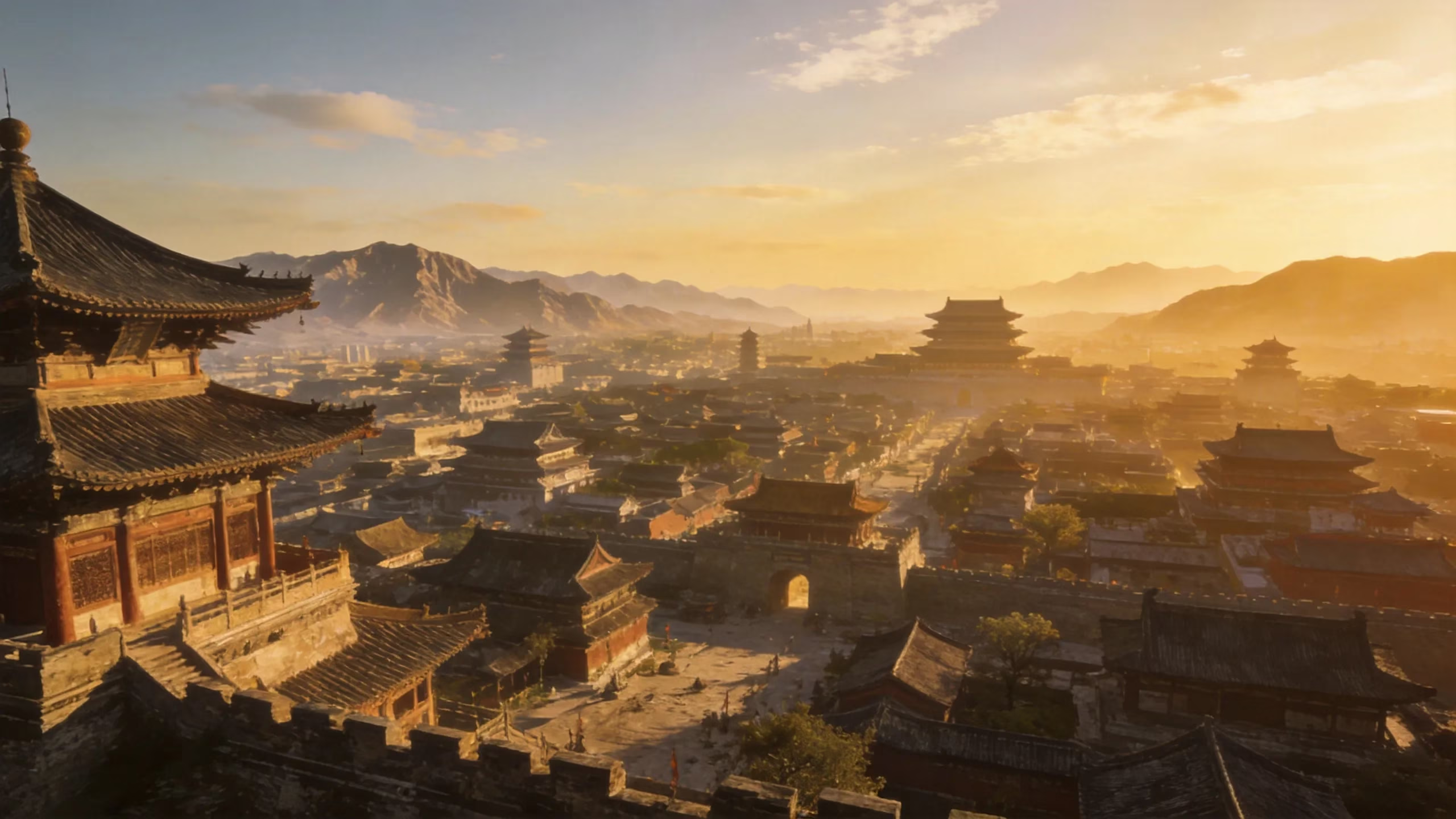
Screen tearing during a Wuthering Waves camera sweep across Jinzhou's skyline is one of those problems that looks minor until you cannot stop noticing it. That horizontal rip cutting through the architecture mid-pan is exactly the kind of visual artifact V-Sync exists to solve — but the fix comes with a catch worth understanding before you toggle anything.
What V-Sync Does in Wuthering Waves
So what is vsync in wuthering waves, exactly? It is a frame-synchronization option that aligns the game's rendered output to your monitor's refresh cycle, reducing the horizontal tear lines that appear when the GPU pushes frames faster than the display can cleanly swap them.
On a 60 Hz monitor, V-Sync targets up to 60 synced frames per second. On a 120 Hz or 144 Hz panel, it scales to match that ceiling instead. The setting does not generate more frames — it paces the ones already being rendered so each lands cleanly at a display boundary.
Tearing is easiest to catch during open-world camera pans. Rotate the view across Wuthering Waves' horizon lines or building edges and the tear appears as a staggered break across the image. Static menus hide it entirely, which is why some players do not notice tearing exists until their first long exploration session.
The real tradeoff is input feel. Combat in Wuthering Waves demands precise dodge timing and parry windows, and V-Sync can add a small but perceptible delay between your button press and the on-screen response. That lag matters far more during a tight echo skill cancel than while gliding over an open field.
Adaptive sync technologies like G-Sync and FreeSync handle tearing more cleanly than classic V-Sync. G-Sync and FreeSync stretch or compress the display's refresh window to match actual frame delivery in real time, which removes tearing without the fixed-latency penalty that V-Sync carries. If your monitor supports either technology, that path is worth testing before committing to classic V-Sync.
Cleaner visuals, slower feel. That is the trade-off.
When to Use V-Sync
Turn V-Sync on when tearing lines are clearly visible during exploration or cutscenes and your frame rate is already holding close to your monitor's refresh ceiling. Enabling it while your FPS swings wildly below that ceiling trades one visual problem for a worse one: choppy, uneven frame pacing that feels more disruptive than the original tearing.
Leave it off if responsive combat controls are the priority. Dodge timing, counter windows, and animation cancels all benefit from the tightest possible input loop, and V-Sync's added latency is a consistent cost even on high-end hardware.
On a 60 Hz panel, both the benefit and the cost feel more pronounced. Tearing stands out clearly at 60 Hz, but so does the latency hit — every frame delay is a higher fraction of your total refresh window than it would be on a faster panel. This is the setup where V-Sync's effects are hardest to ignore in either direction.
On a 144 Hz monitor, tearing is harder to spot even without sync enabled because the display swaps frames fast enough that tears appear and vanish more quickly. The input tradeoff stops being worth it for many players at that refresh rate.
FreeSync or G-Sync Compatible mode deserves a test run before classic V-Sync becomes the default answer. Adaptive sync handles the tearing problem cleanly for most Wuthering Waves sessions without locking your input response to a fixed delay.
Skip classic V-Sync if adaptive sync is available.
V-Sync Problems and Fixes
If enabling V-Sync makes Wuthering Waves feel sluggish, run a clean comparison: disable V-Sync, keep resolution and every other setting identical, then test the same combat encounter in the same location. One variable at a time is the only way to isolate what is actually changing.
Freezing or severe stutter that appears immediately after toggling V-Sync is not always caused by V-Sync itself. Restart the game fully before drawing conclusions — a fresh session clears leftover frame-pacing state that can corrupt the first few minutes after a mid-session settings change.
FPS that bounces below your monitor's refresh target is a common trap. When V-Sync is on and frame rate drops from 60 to 45 on a 60 Hz display, the game does not smoothly render 45 frames — it delivers some frames twice, creating a stuttering cadence that many players find worse than tearing ever was. That stutter is V-Sync working as designed, not a bug.
Stacking multiple sync tools at once creates real problems. In-game V-Sync running alongside driver-level forced sync and external frame generation tweaks can generate frame doubling every few frames or brightness oscillation between transitions — a specific artifact that is hard to diagnose because it resembles monitor overdrive gone wrong. Pick one sync method and disable the others.
| Check | What to Look For |
|---|---|
| Monitor refresh rate | Does your FPS actually reach it? |
| In-game FPS cap | Set independently from V-Sync? |
| GPU driver sync settings | Forced V-Sync or adaptive enabled? |
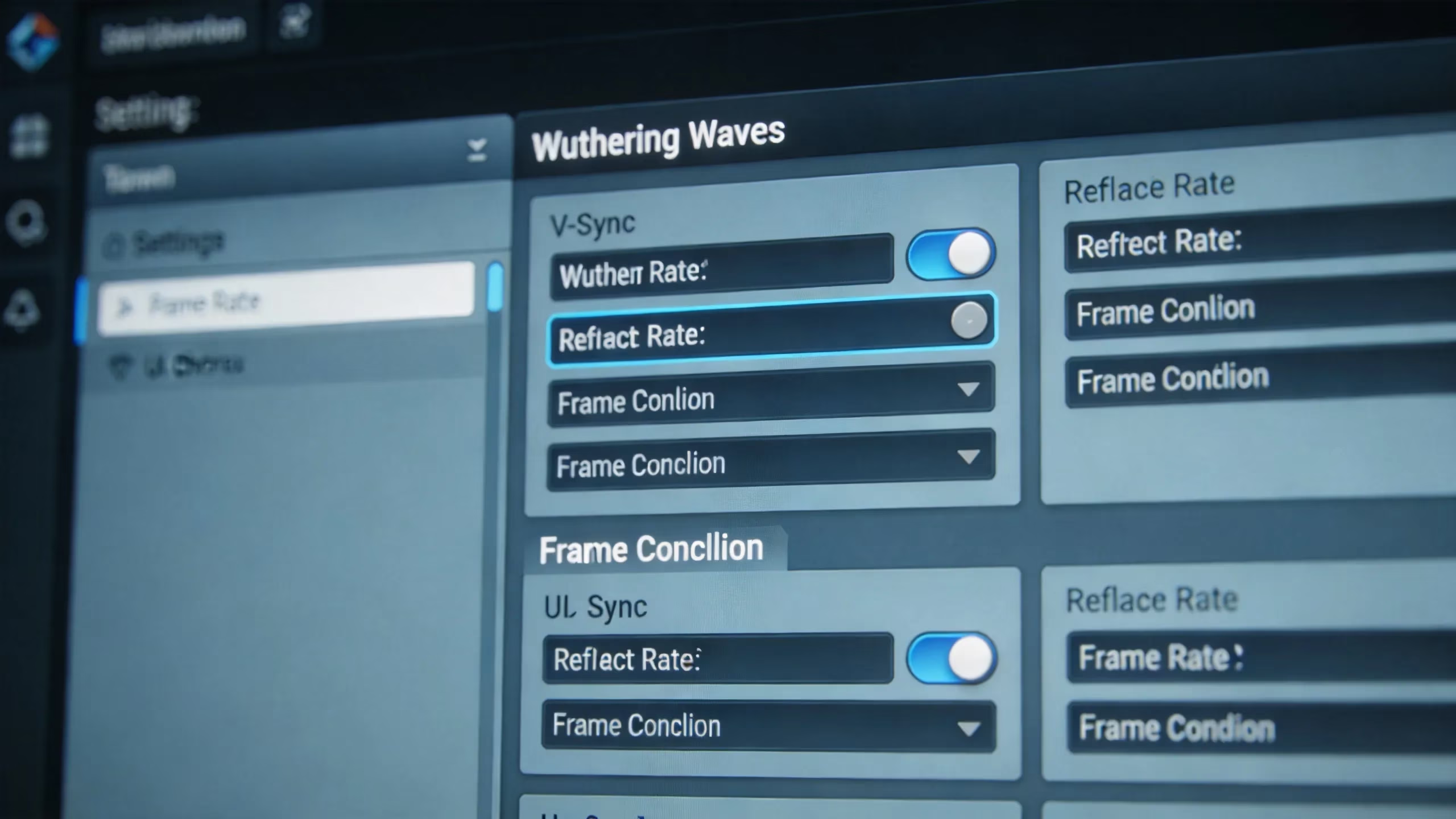
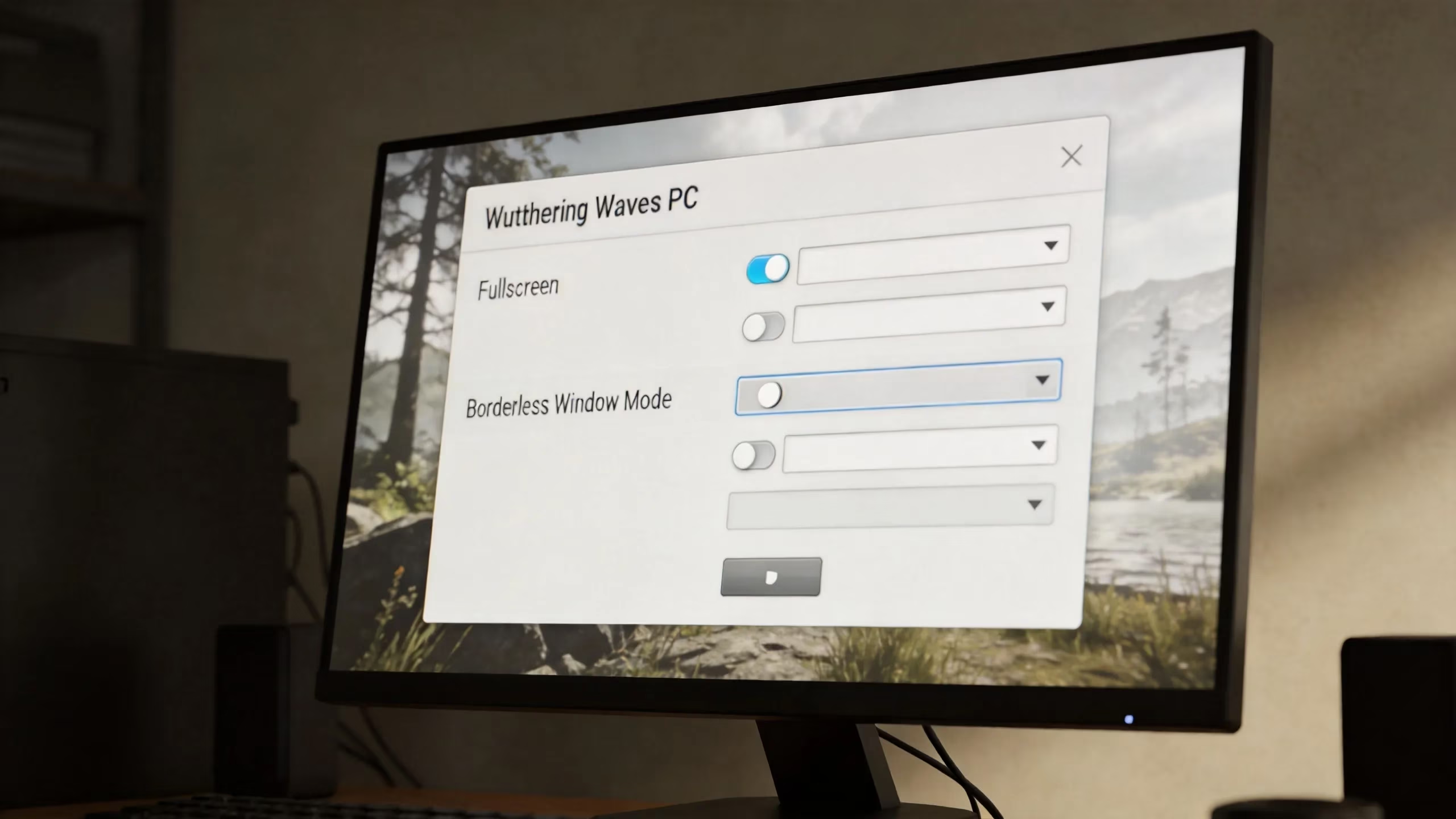
| Display mode | Fullscreen vs. borderless changes sync behavior |
| VRR / FreeSync / G-Sync | Enabled at system level alongside in-game V-Sync? |
Visual Artifact Fixes
Flickering after enabling V-Sync, especially when VRR is also active, points to conflicting sync signals. Two systems both trying to control frame delivery simultaneously produce unstable brightness transitions and frame-rate oscillation. Disable one or the other — not both.
Ghosting or motion smear during camera pans is not always V-Sync's fault. Monitor overdrive settings control how fast pixels transition between states, and aggressive overdrive on some panels creates trailing edges during fast motion that exist regardless of sync state.
Black-frame insertion and motion blur reduction features on monitors affect perceived clarity and can dim the image noticeably. Disable those before judging whether V-Sync is causing the visual problem — the interaction between BFI and V-Sync is a genuine source of confusion.
Borderless and fullscreen modes handle sync differently on some systems. Windows 10 and 11 apply their own compositing layer in borderless mode that can interact with V-Sync and VRR in unexpected ways. Switching to exclusive fullscreen removes that compositing step entirely and is the cleaner environment for testing sync behavior.
GPU driver panels for both NVIDIA and AMD include their own V-Sync and low-latency controls. A driver-level setting that forces V-Sync on will override the in-game toggle, so if disabling V-Sync in Wuthering Waves has no visible effect, the driver panel is the next place to check.
Best Display Setting Combinations
60 Hz Setup
On a 60 Hz screen, the honest comparison is V-Sync on with an FPS cap near 60 versus V-Sync off at uncapped output. Neither is universally better — the right choice depends on whether your hardware can actually hold 60 FPS in demanding areas.
Frame delivery consistency matters more than peak numbers on a 60 Hz panel because the display cannot show anything beyond that ceiling anyway. A stable 58–60 FPS with V-Sync on looks cleaner than 72 FPS average with occasional drops to 42 without it.
City traversal and effect-heavy boss fights are the stress tests that reveal whether sync is helping. If the frame rate dips into the low 50s or high 40s during those sequences, V-Sync's frame-doubling behavior will make the dip feel choppier than the raw numbers suggest. On 60 Hz, that difference between a 55 FPS drop and a 42 FPS drop is immediately visible as rhythm disruption.
Stable frames beat high frames on 60 Hz. Full stop.
120 Hz or 144 Hz Setup
Higher-refresh panels reduce tearing's visual harshness because a tear line at 60 Hz is visible for roughly 16 ms, while at 144 Hz it disappears in under 7 ms — short enough that many players stop registering it as a problem. V-Sync off becomes a more comfortable default here, trading minor visual imperfection for snappier input response.
Holding 120+ FPS consistently in Wuthering Waves requires capable hardware. SmoothFPS optimization data shows an RTX 4070 / RX 7800 XT tier targeting 100+ FPS at 1440p, which means 120 FPS at 1080p is achievable on that tier but not automatic. If your system cannot sustain that target, enabling V-Sync at 120 Hz brings back the same frame-doubling risk as on 60 Hz.
Native V-Sync versus VRR on a higher-refresh panel is not a close competition for action gameplay. Adaptive sync tracks your actual frame delivery and adjusts the display window accordingly — no tearing, no fixed input delay.
Poor frame pacing from CPU-side bottlenecks — which in Wuthering Waves trace back to GameThread overload in dense areas like Startorch Academy and Septimont — produces microstutter regardless of monitor speed. A 144 Hz number on the box does not fix that.
VRR wins on high-refresh panels. Classic V-Sync is the fallback, not the goal.
FPS Cap and VRR Choices
An FPS cap set a few frames below your monitor's maximum can smooth presentation more reliably than V-Sync alone. Capping at 117 on a 120 Hz display, for example, prevents the GPU from racing to the ceiling and triggering sync events that add latency.
VRR combined with a sensible FPS cap is the cleaner solution for most Wuthering Waves setups that want reduced tearing without the full input-lag cost of classic V-Sync. If the monitor supports it, this combination handles both the visual and responsive-feel requirements simultaneously.
When VRR is unavailable, classic V-Sync remains a viable fallback — but only when hardware can stay close to the target refresh consistently. Below that threshold, no sync method makes choppy frame delivery feel smooth.
Test any combination in the same combat scenario for several minutes before deciding. Short sessions hide variance from spawning effects, ability animations, and NPC density shifts that only appear in longer play.
That variance is what fools quick tests every time.
Quick Setup Checklist for Your Monitor
Start here and work down until the problem is solved:
-
Tearing is visible and FPS stays near refresh rate → enable V-Sync first
-
Dodges, parries, or camera movement feel delayed → disable V-Sync and retest in the same fight
-
Monitor supports FreeSync or G-Sync Compatible → try VRR before classic V-Sync
-
Stutter appears after enabling sync → check FPS stability, display mode, and driver-level settings before changing multiple options at once
-
60 Hz screen → prioritize stable frame pacing over chasing peak numbers; 120 Hz or 144 Hz screen → compare input responsiveness against visual smoothness and keep whichever option performs better in actual combat, not just menus
Understanding what is vsync in wuthering waves is the starting point, but the right answer depends on the full chain: monitor technology, hardware capability, display mode, and driver configuration all interact. No single setting wins every scenario, so the checklist above is worth running through once rather than defaulting to a blanket recommendation.
Comments